Hunter Data Board Setup Steps:
- Login to https://cch.autonettv.com/cch/ with your credentials.
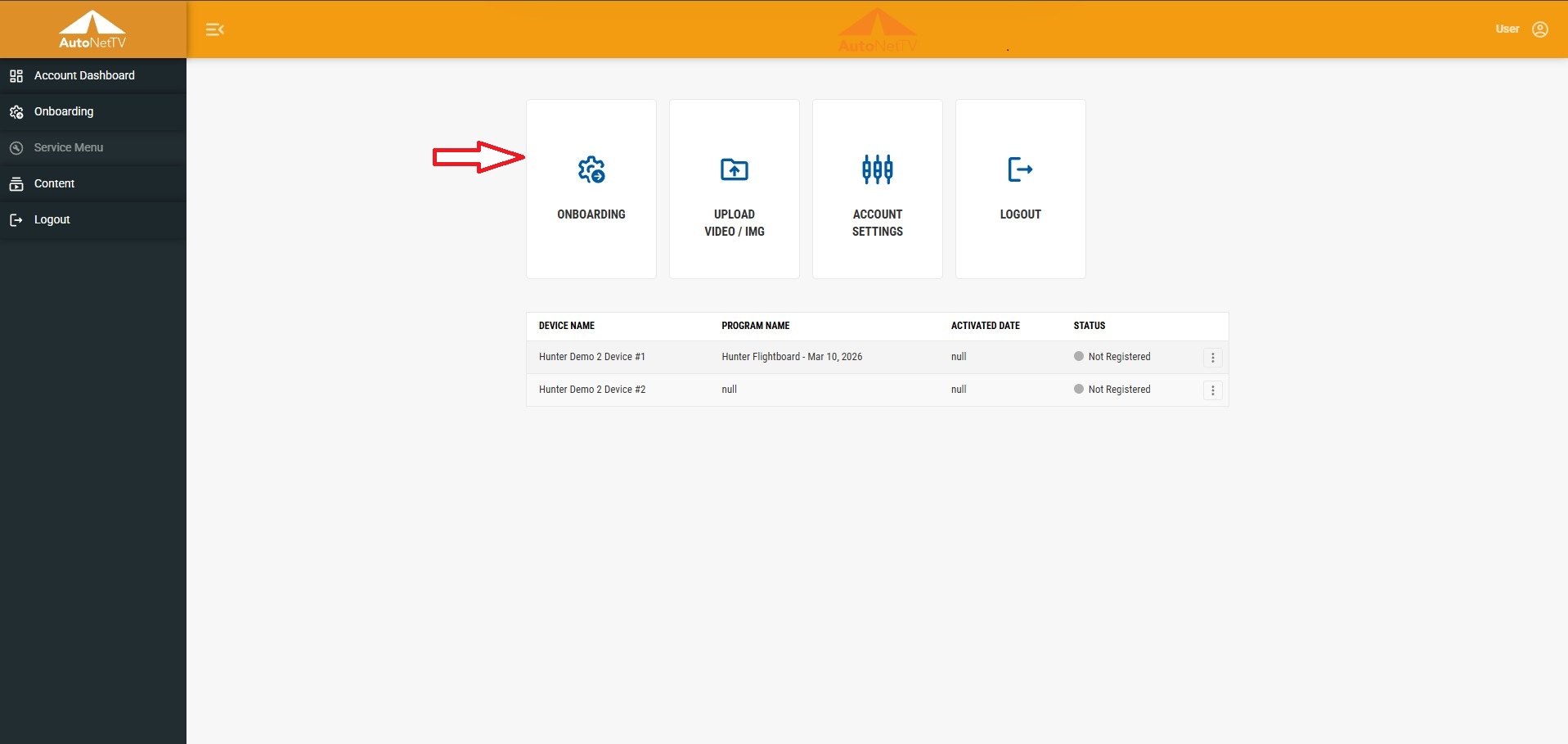
- Click on onboarding
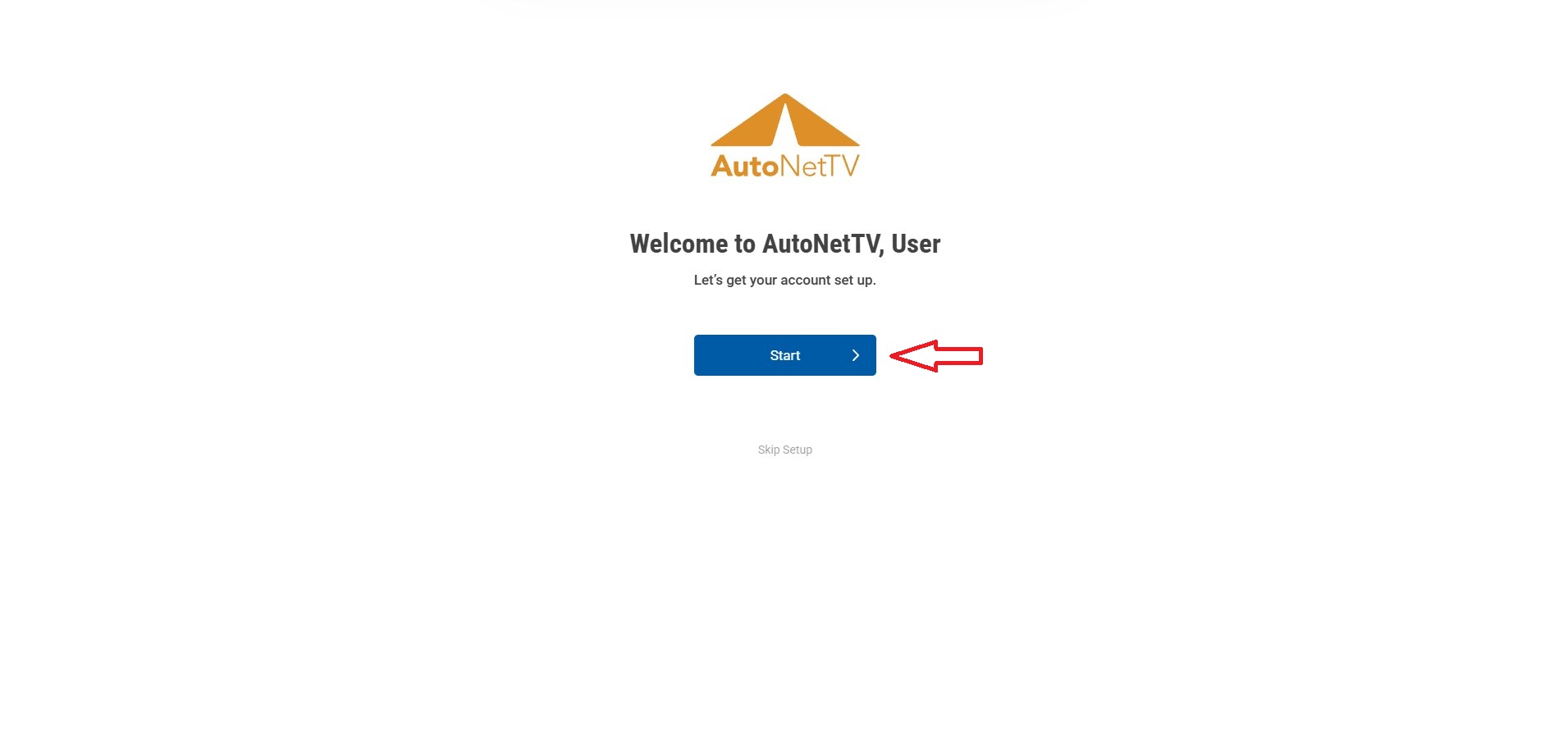
- Click on the Start button to start the Hunter Data Board setup.
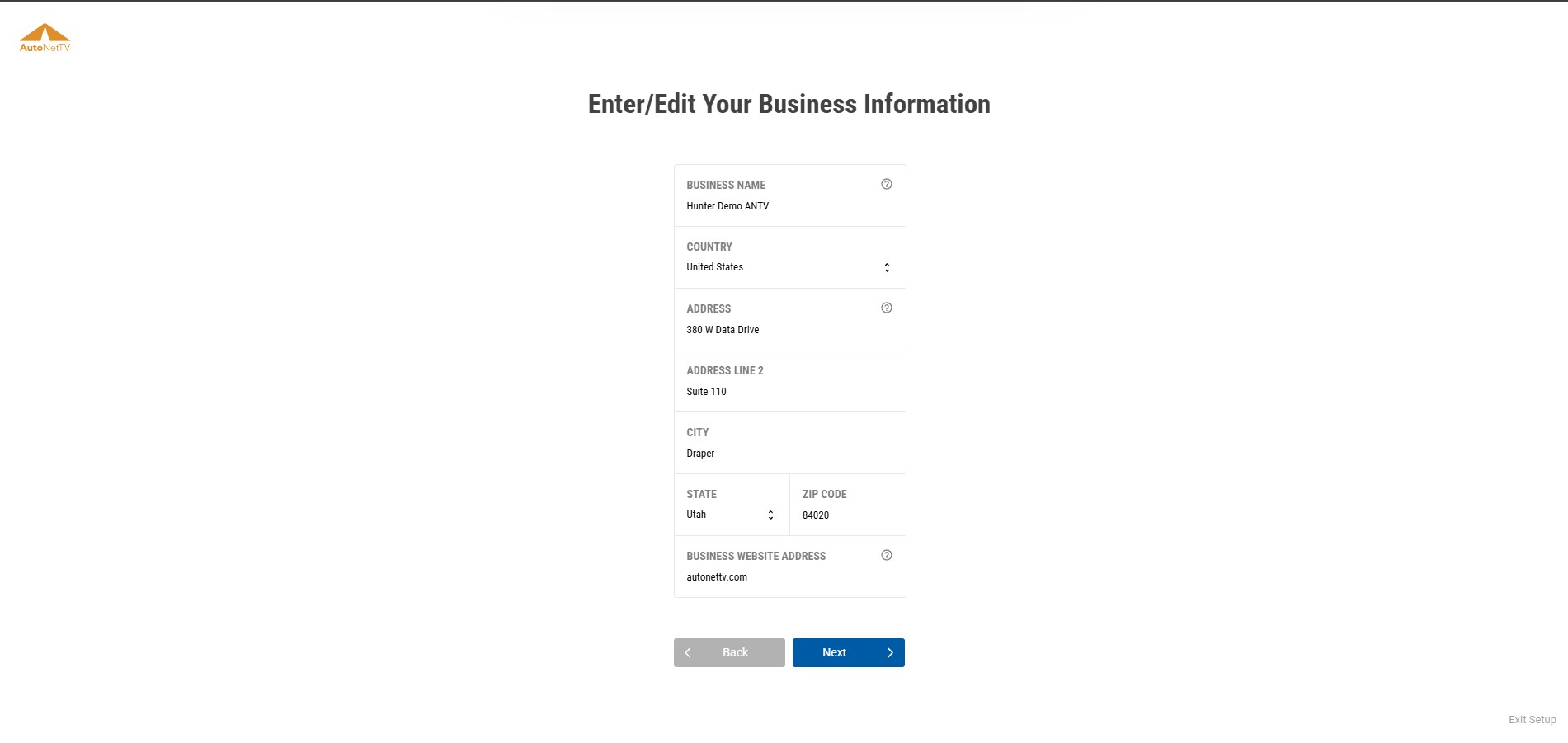
- Add your business info and click next.
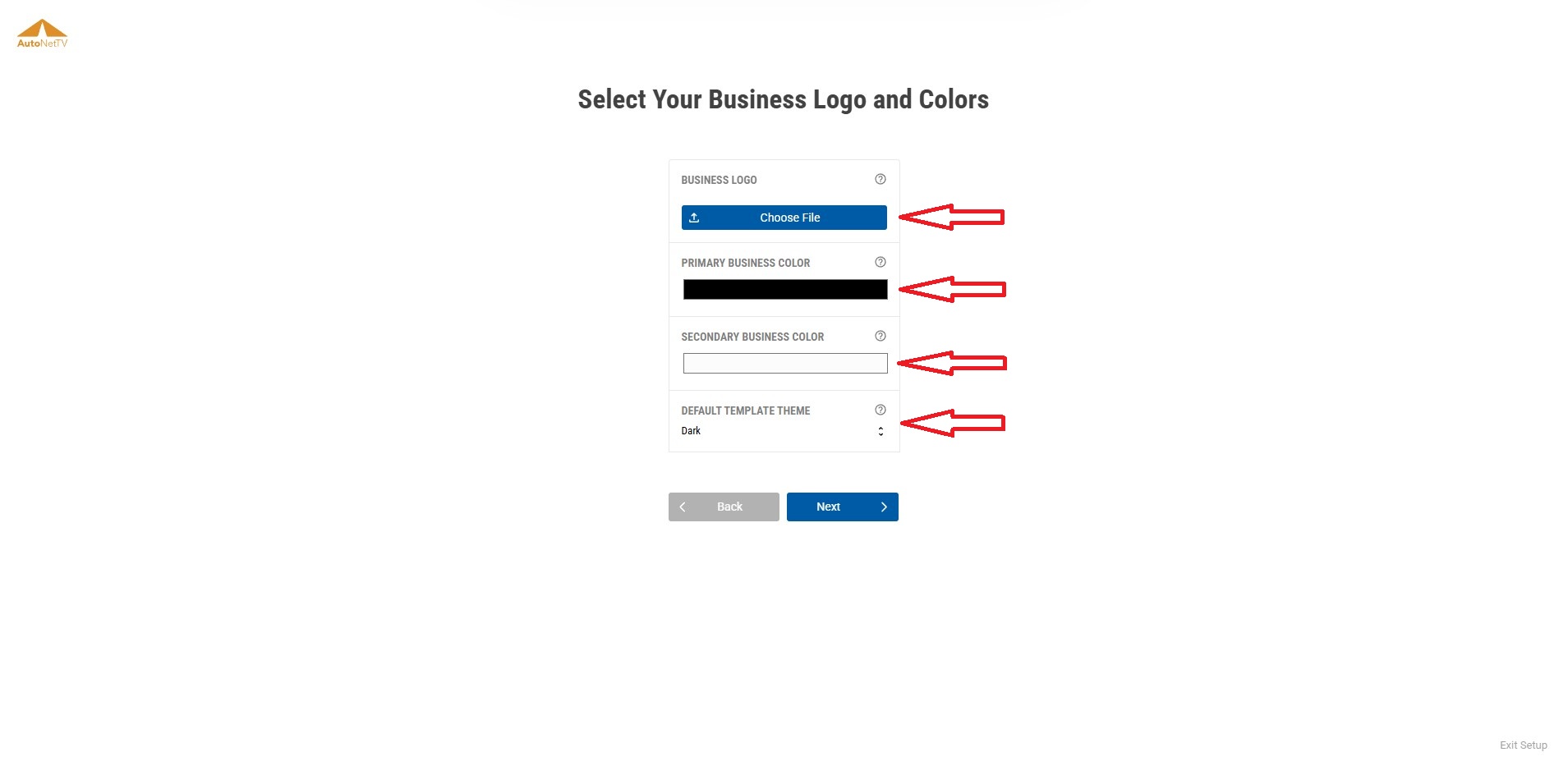
- Upload your logo, select primary and secondary business colors, and template theme.
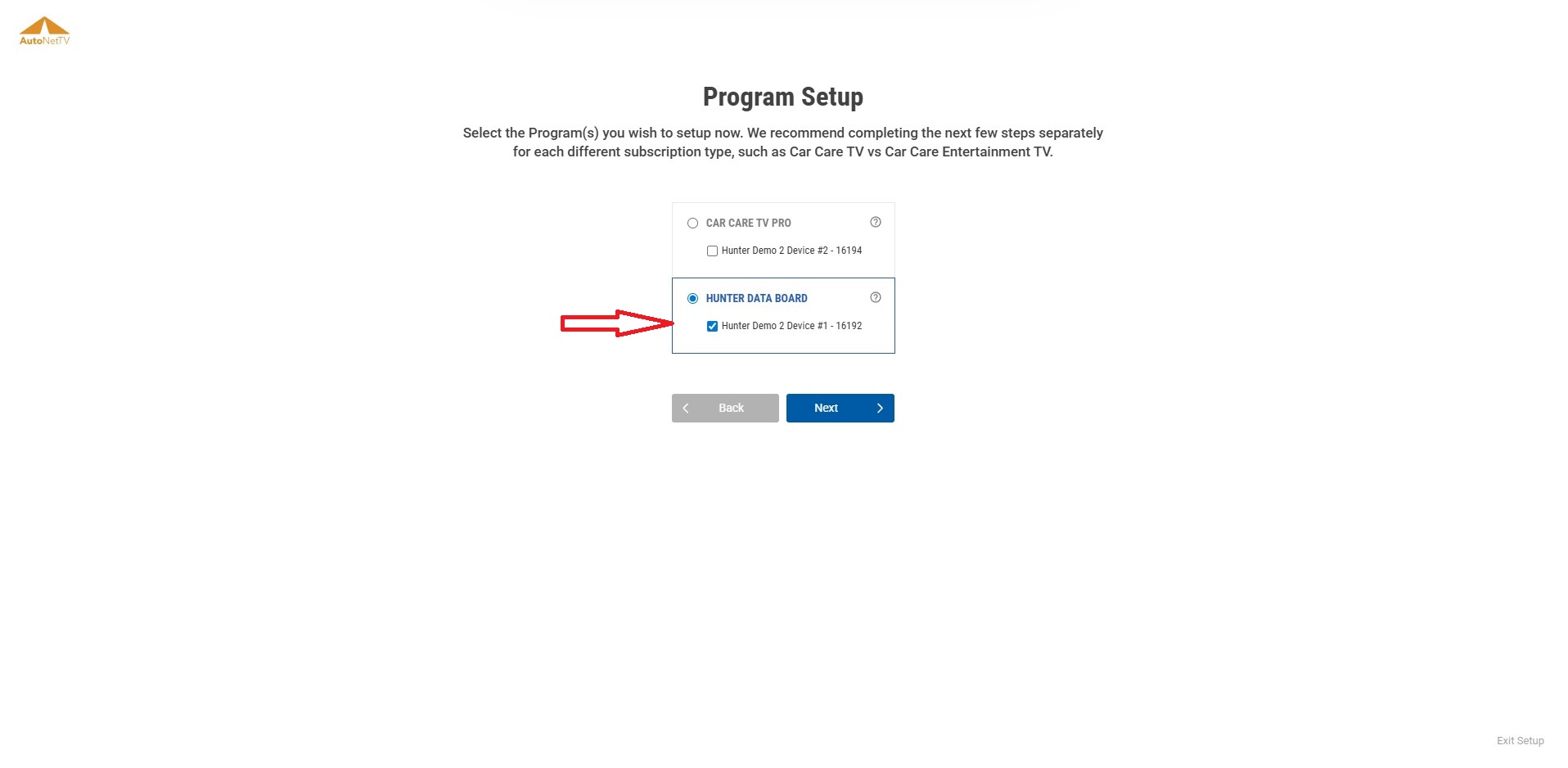
- Select device(s) That are marked Hunter Data Board.
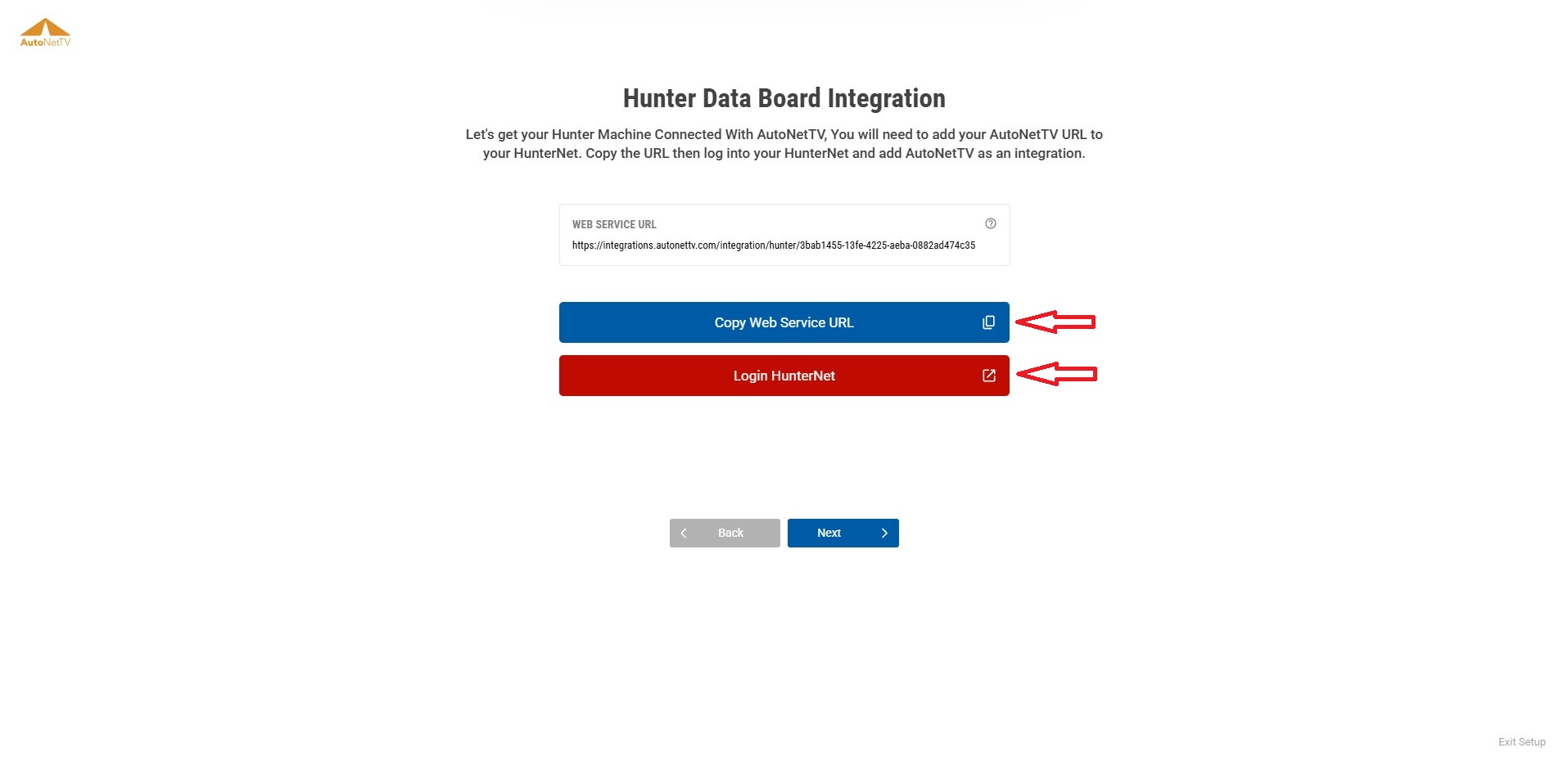
- Copy web service URL. Then select Login HunterNet. This will load a new browser window.
- Click on onboarding
7.1 Log in to the HunterNet portal using your HunterNet credentials. 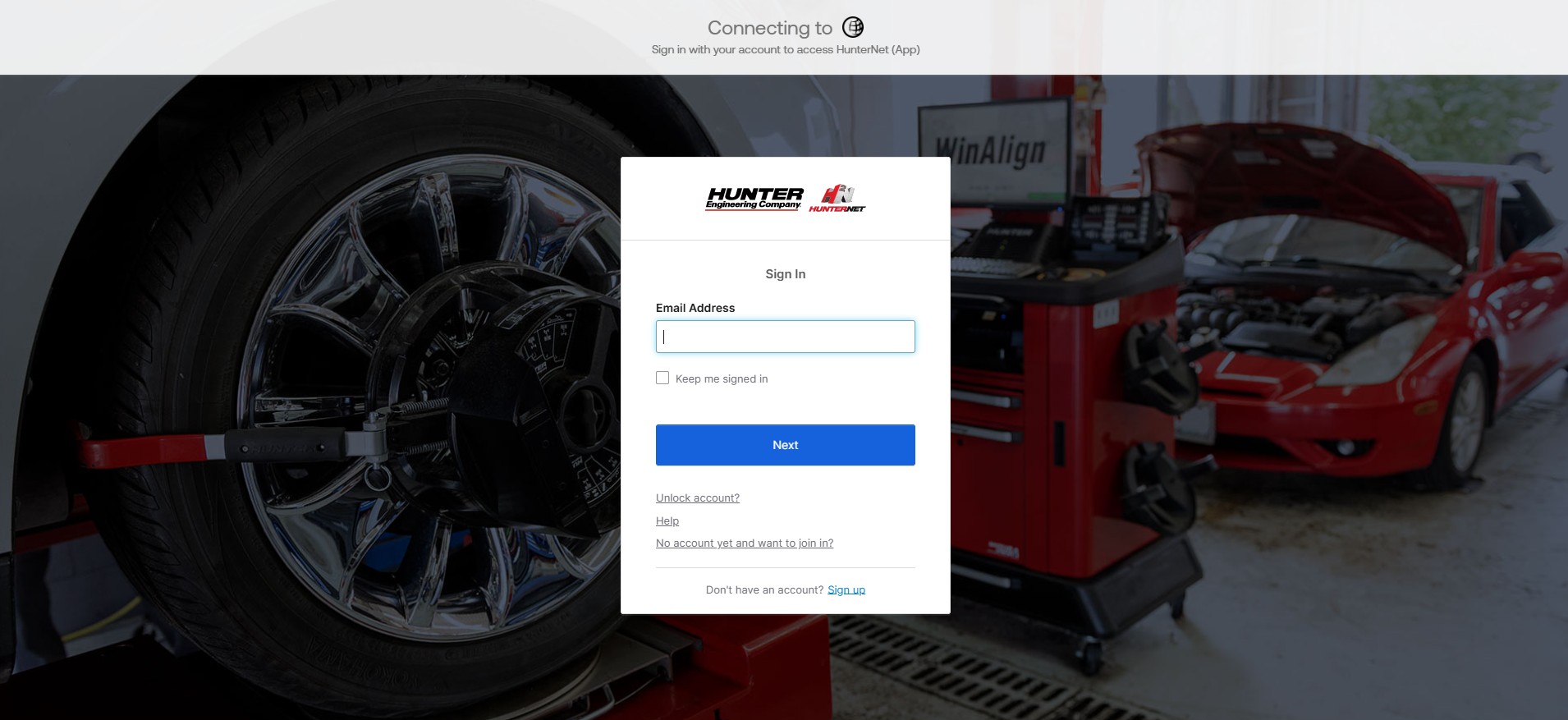
7.2 Once logged into HunterNet select store settings on the left-hand side menu. 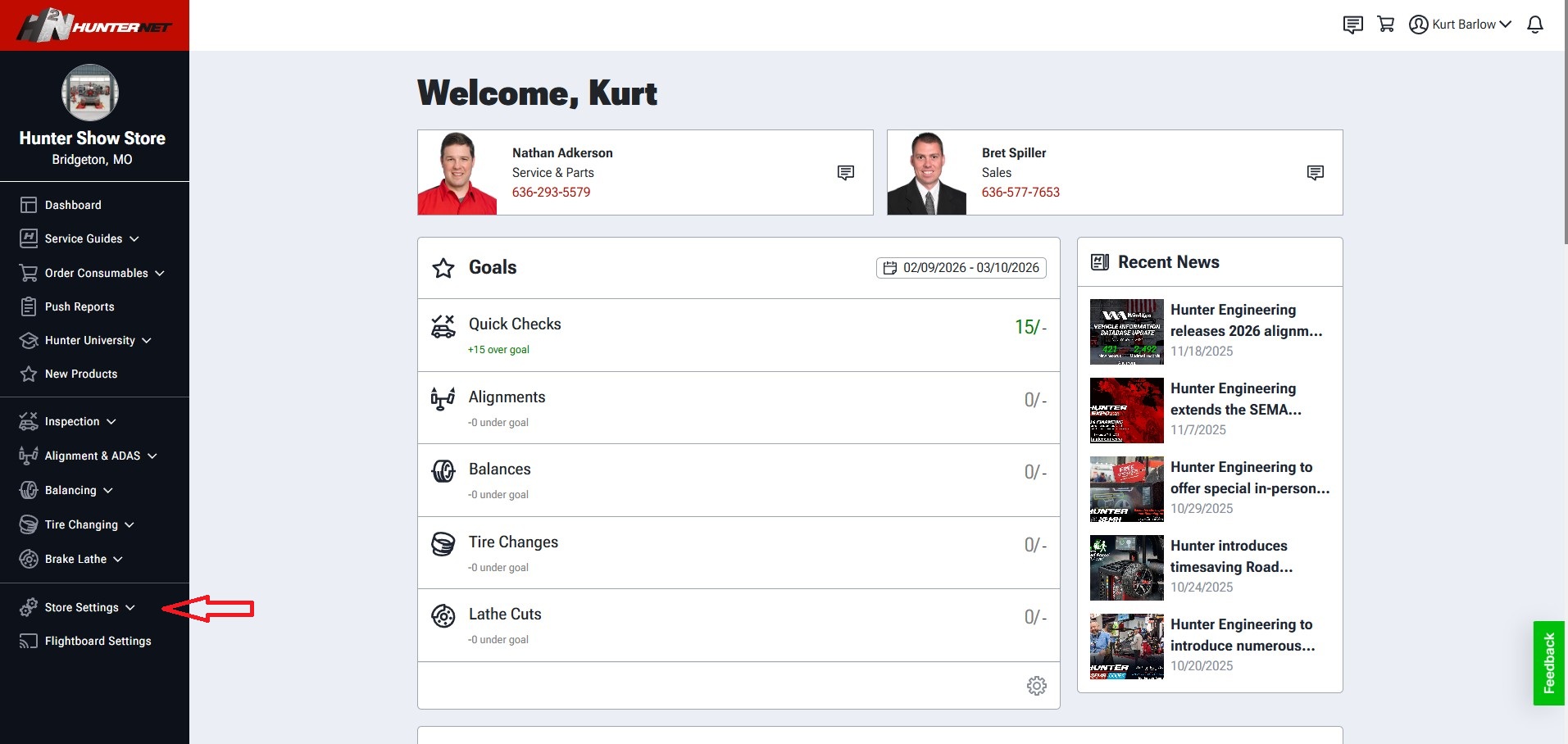
7.3 In that drop down you will see equipment integration select that. 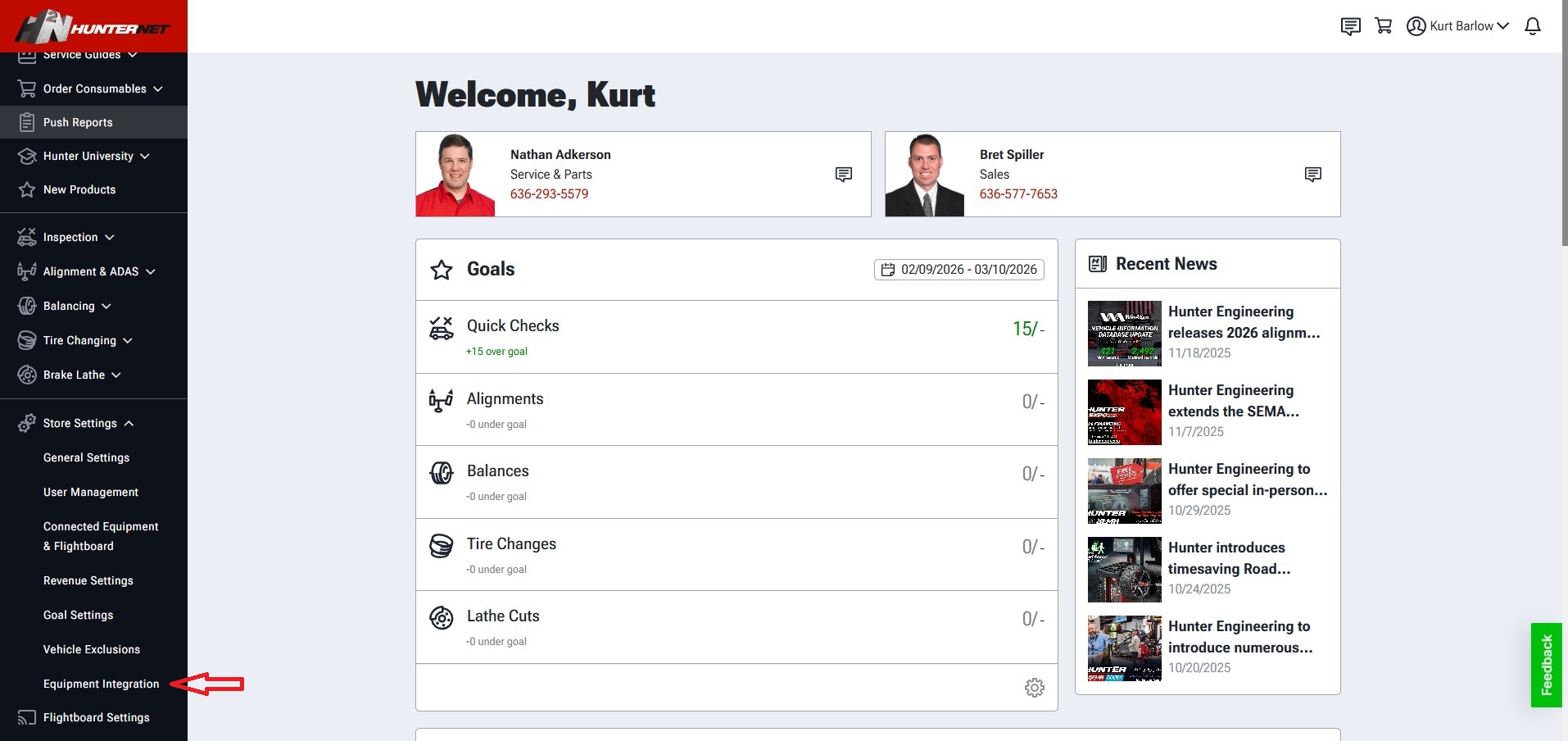
7.4 In the top right corner click on new integration. 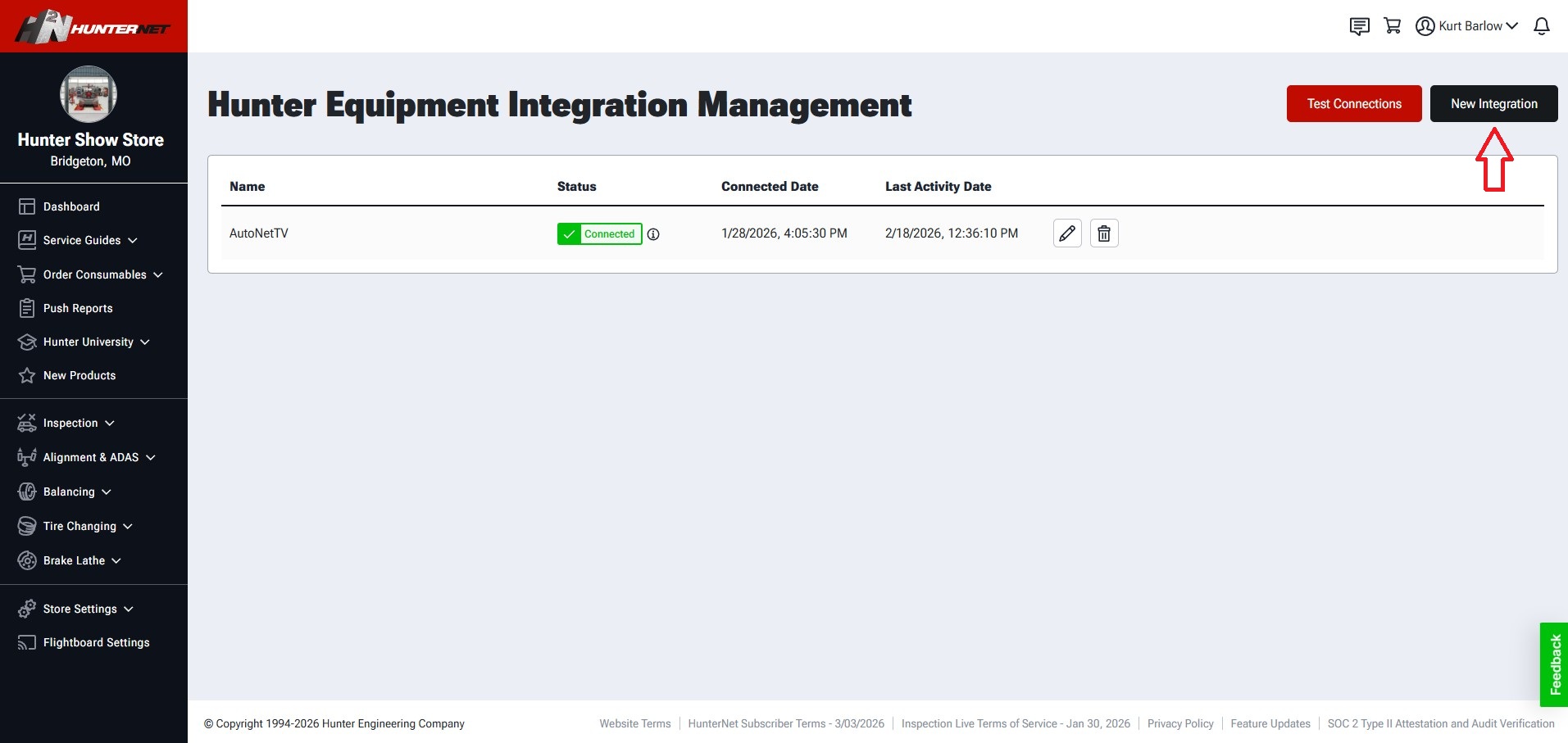
7.5 Click on Enter new integration. 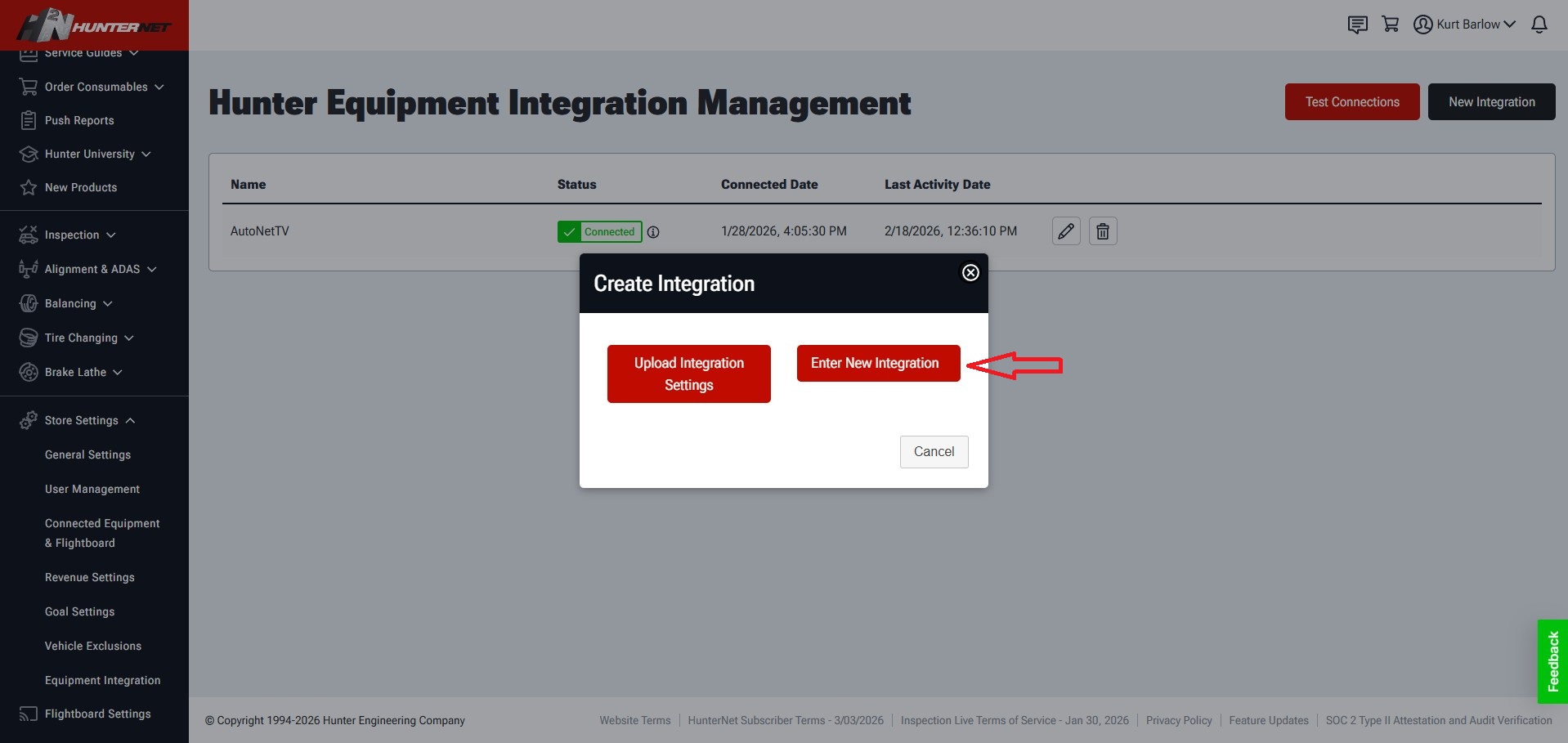
7.6 Give your integration a name.
7.6.1 Insert/Paste the URL that you copied in step 7.
7.6.2 Click on test to confirm the connection has been established.
NOTE: The Security Token, Equipment Model, and Equipment Identifier boxes should be left empty.
7.6.3 Check the box next to "Accept Agreement", then click save. 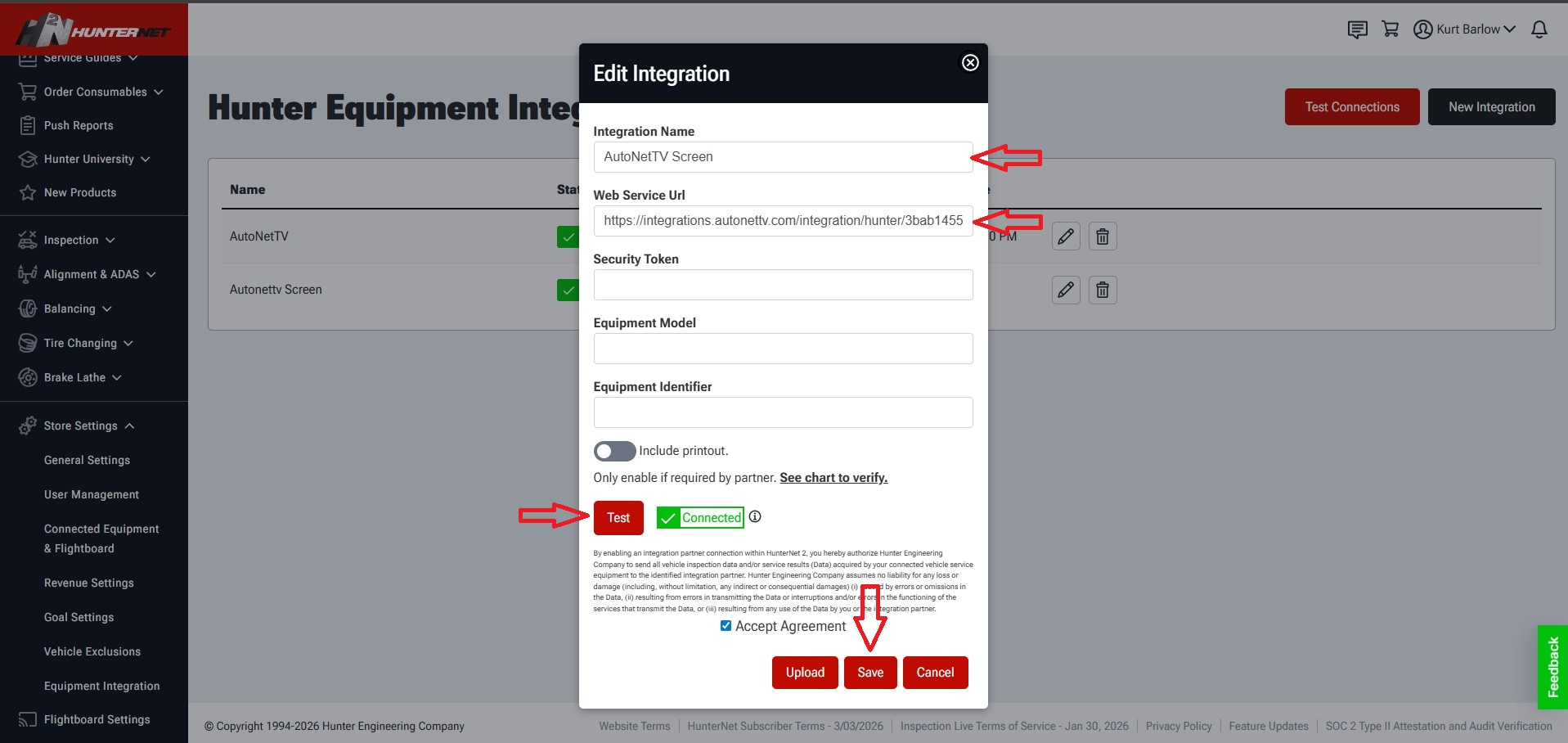
7.7 You will see a pop up that says, "Integration settings saved successfully!", and you should see your new integration in the list, with status "Connected". 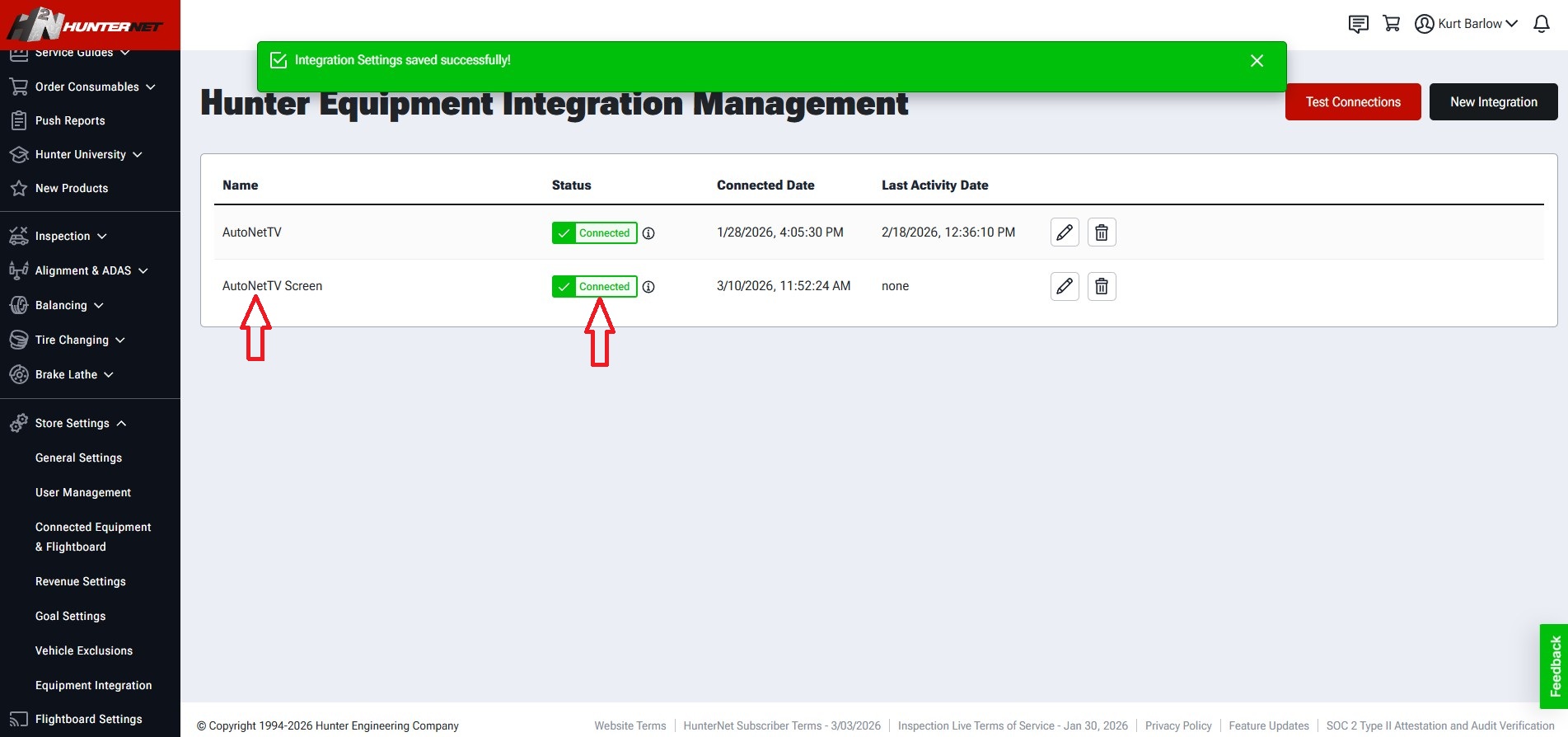
7.8 Once you have completed the previous step you will go back to browser window that has the AutoNetTV setup and complete the steps by clicking next.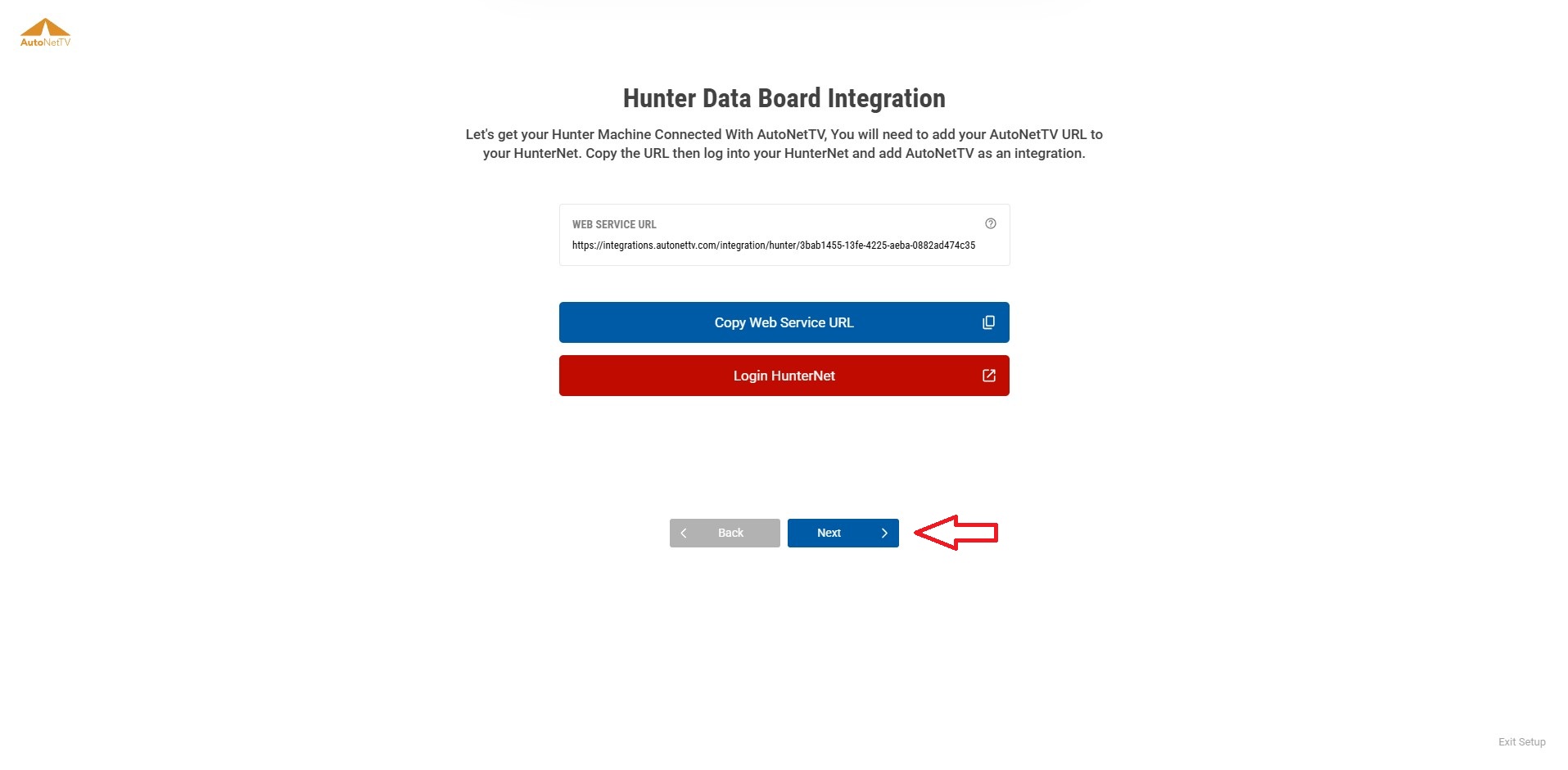
7.9 Click on next and you will see a popup screen stating that the connection was established.
8. Setting up service menu and price.
8.1 You see that we have preselected services that correlate to Wheels & Alignment.
8.2 Select which services, disclaimers and pricing you want to appear on your Hunter Data Board. 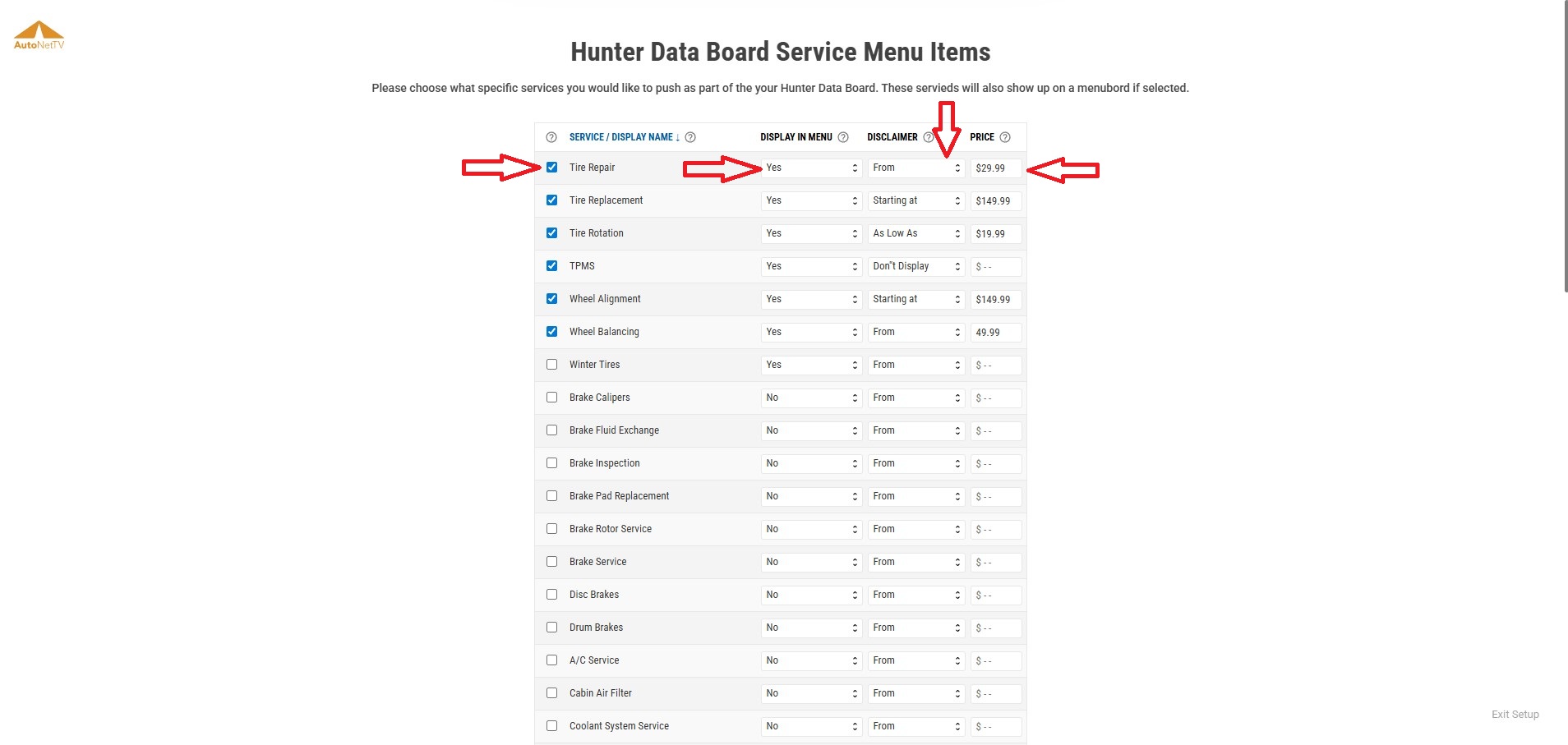
8.3 Scroll to the bottom and click next, you will see an AutoNetTV Logo loading while the system is saving your services. 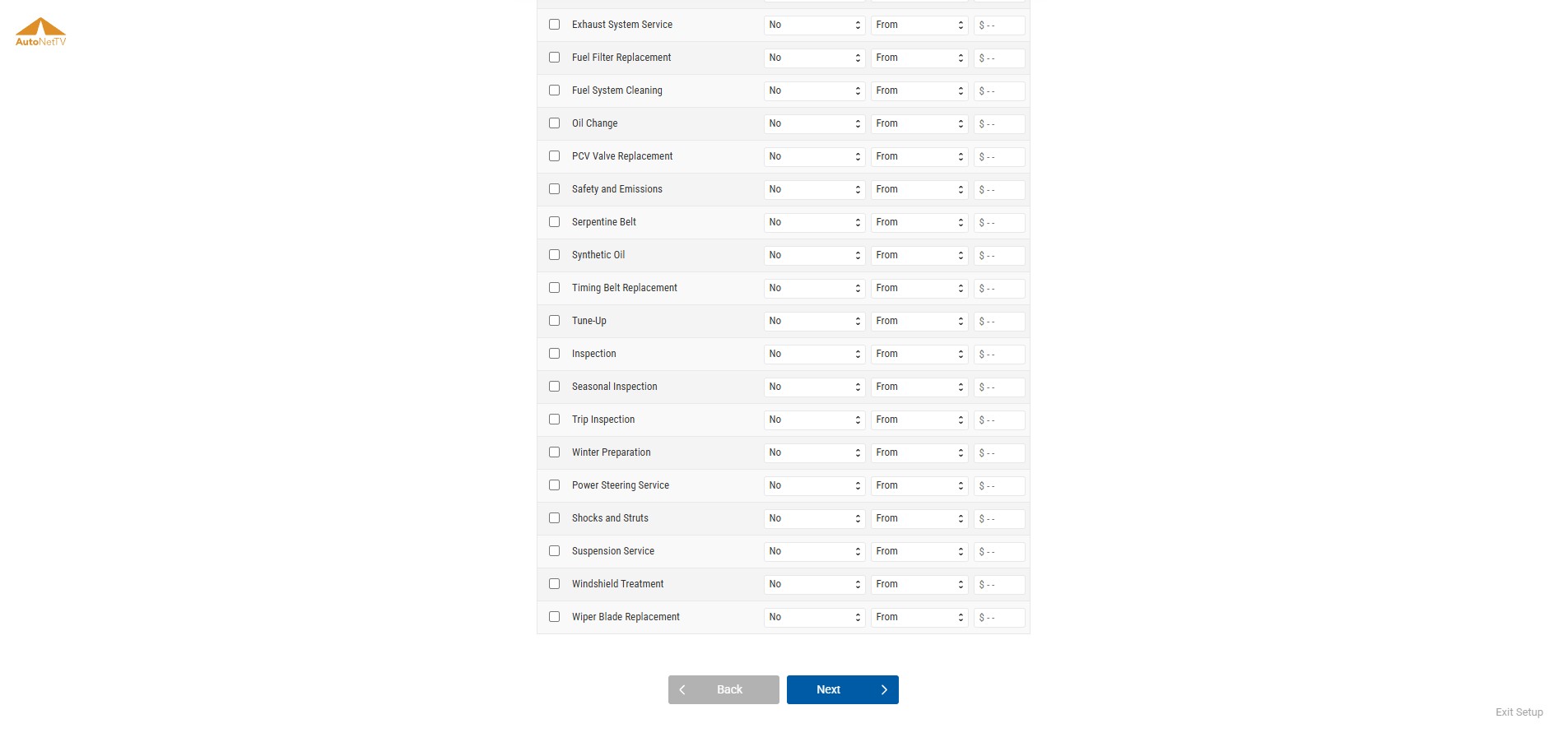
9. Select your layout style and scroll down and click on next. 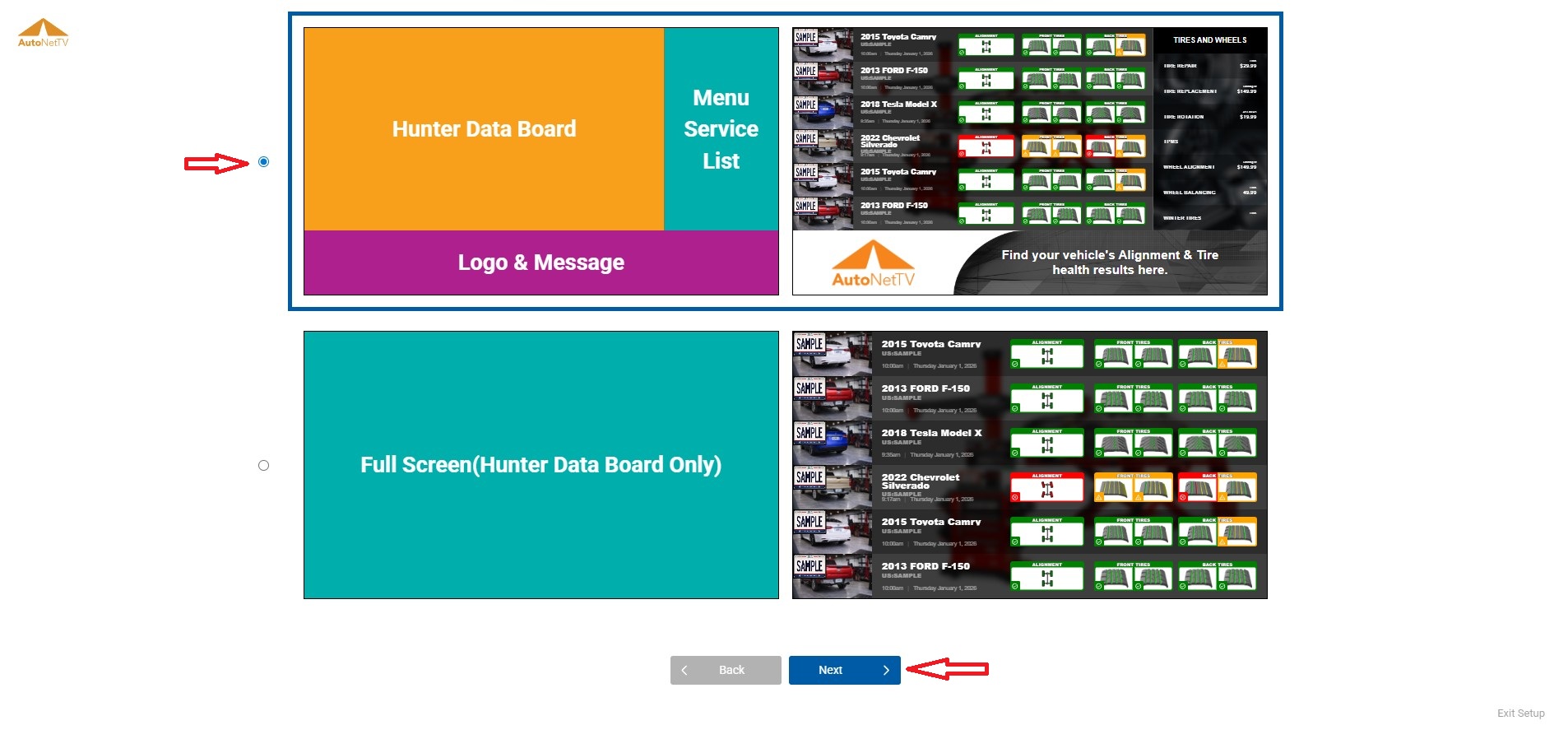
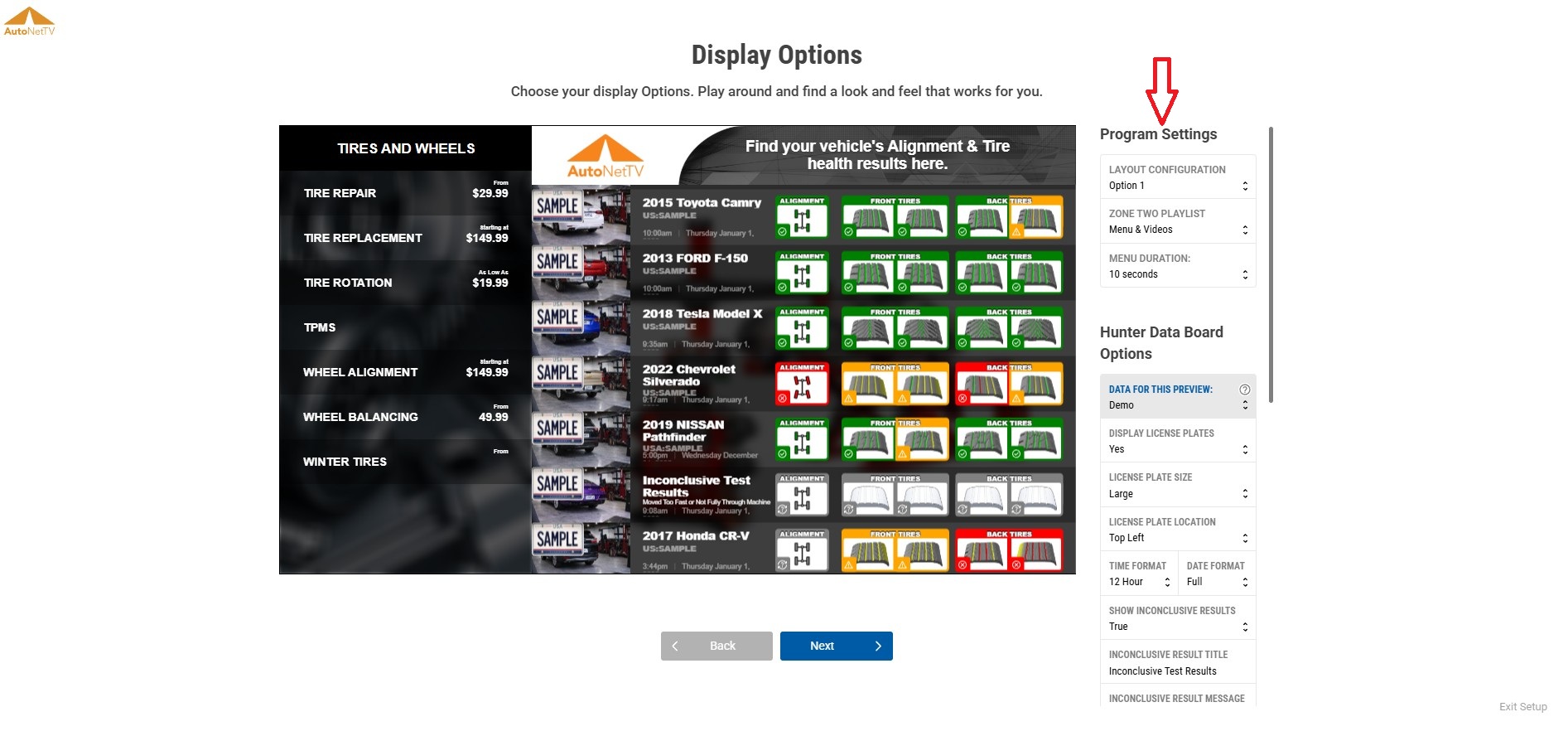
10. In Display Options you can fine tune the look and feel of your Hunter Data Board. This includes the text that appears next to your logo, as well as features such as the local weather forecast, and how the test results are formatted.
11. Once you have configured the layout to your preferences, select "Next".
12. Select Automatically build based on my settings and then click next. 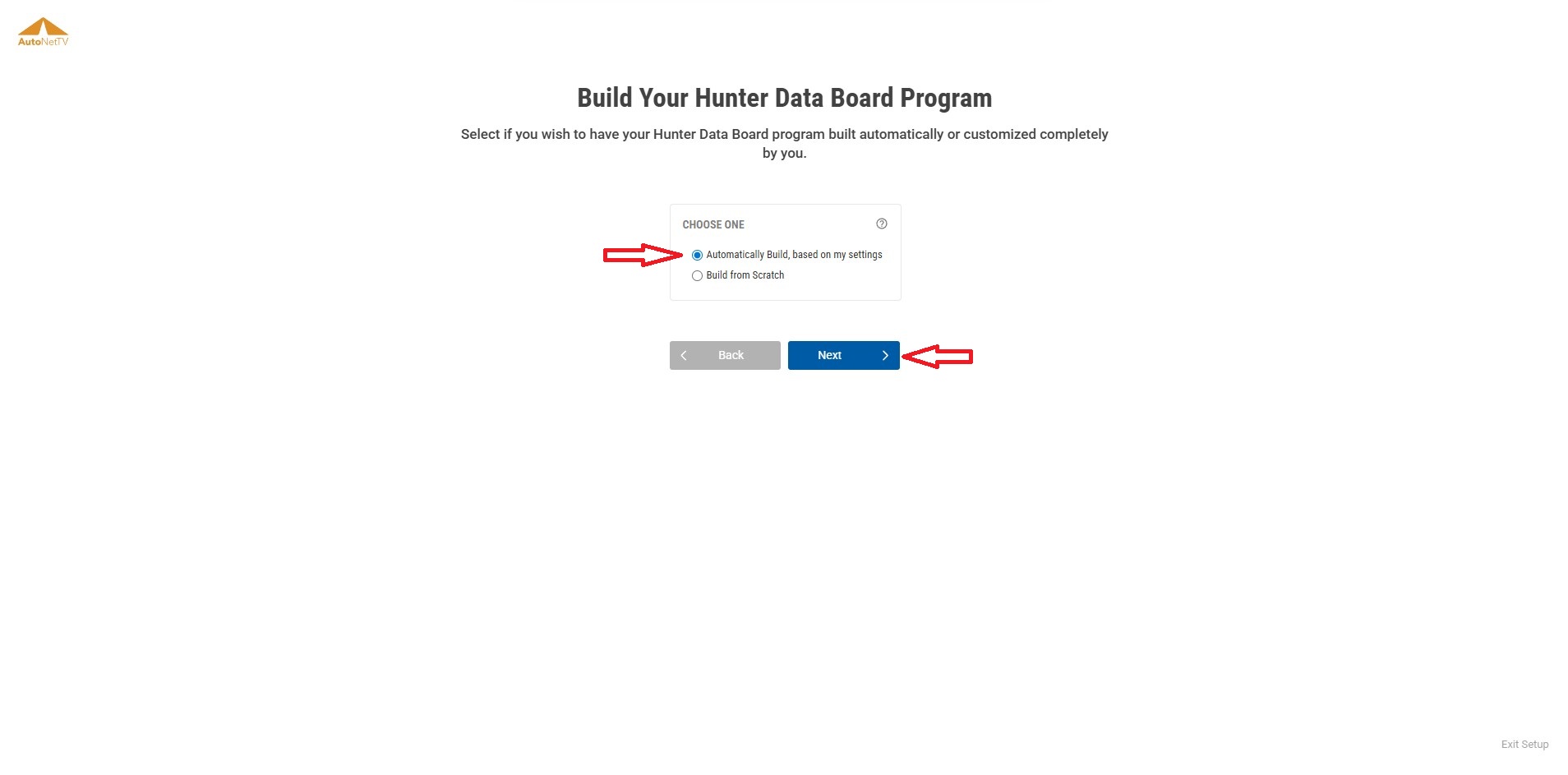
13. Congratulations! You have successfully configured your Hunter Data Board, and you can now click "View Dashboard" to be taken back to the home page. 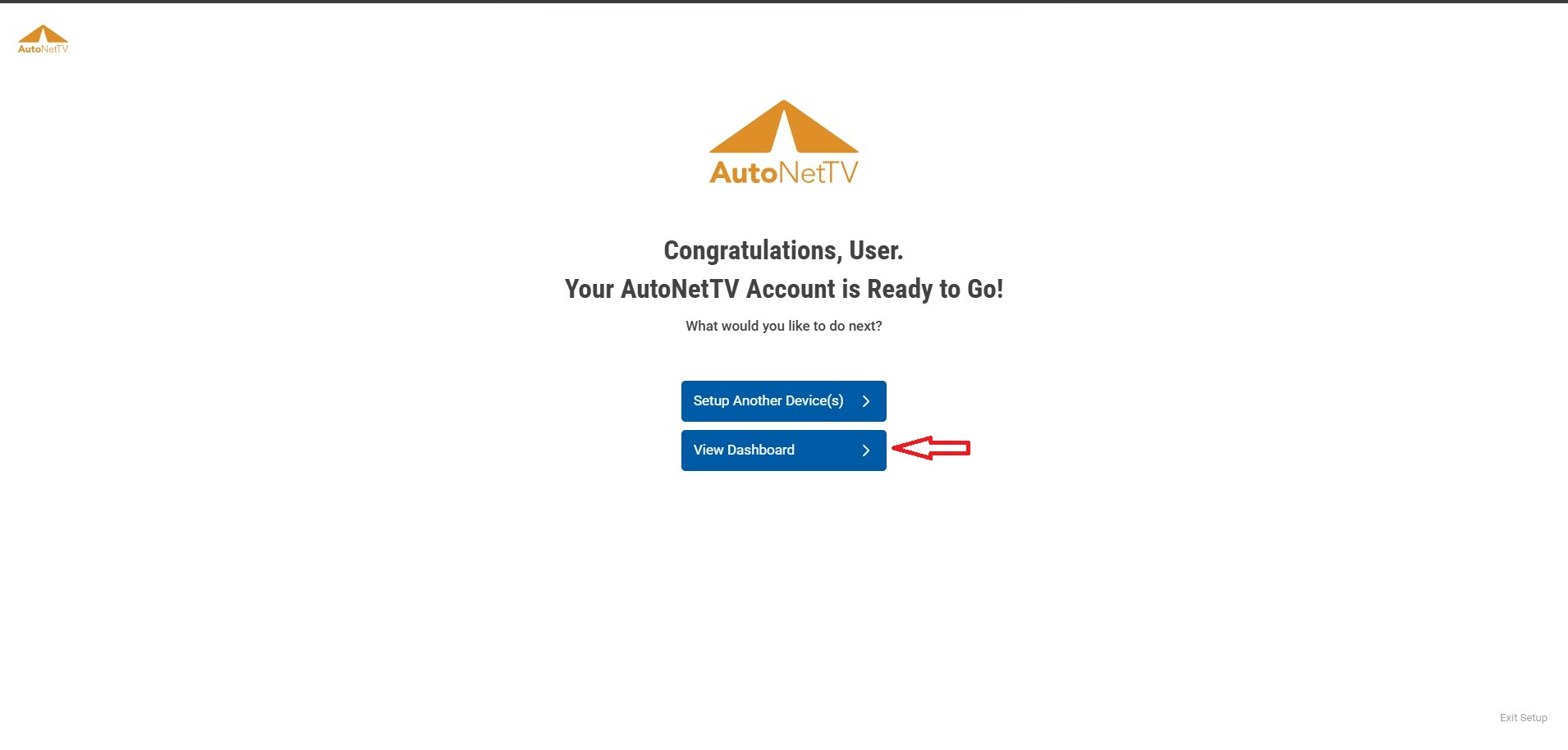
If you have already activated your AutoNetTV media player, you will begin seeing new test results on your screen as vehicles are scanned by your Hunter Alignment and Tire system.
If you haven’t activated your AutoNetTV media player, go ahead and do so. Once you have completed this process you will start seeing results as you drive new vehicles through your Hunter machine.
Was this article helpful?
That’s Great!
Thank you for your feedback
Sorry! We couldn't be helpful
Thank you for your feedback
Feedback sent
We appreciate your effort and will try to fix the article