- While the app is running on your device there are two ways to get to Content On Demand:
- Simply press the OK button on your included remote.
- Click the Settings Button on your remote (three horizontal lines under red power button) then select Content On Demand
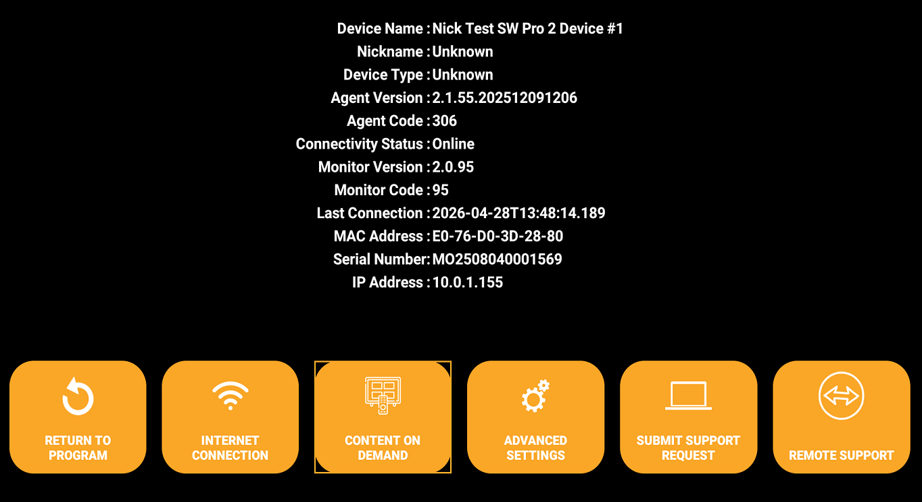
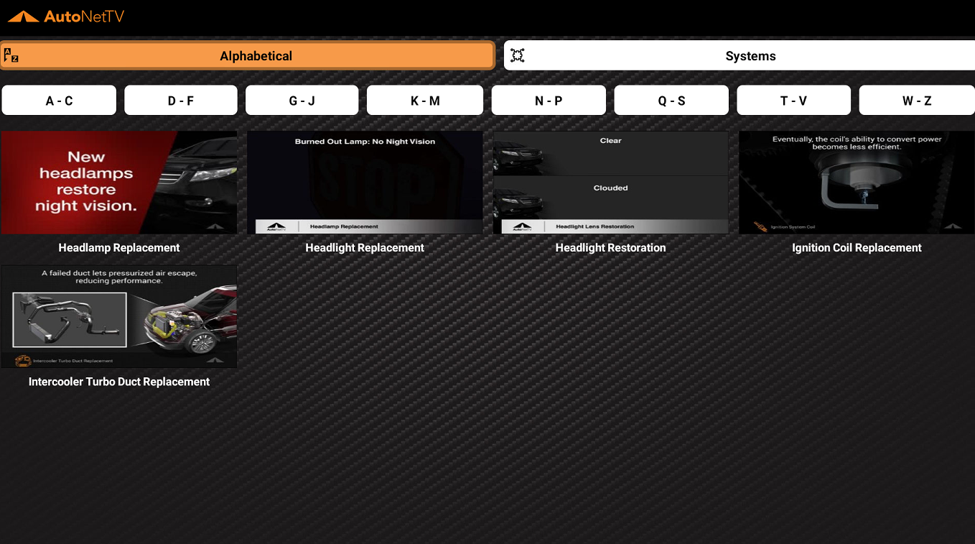
- Next you will see two options for sorting and finding Content.
- By default, when you open COD, you will see it set to Alphabetical. This is sorted using the first letter of each Service name. So, for example to find all Headlight videos navigate to the tab G-J.
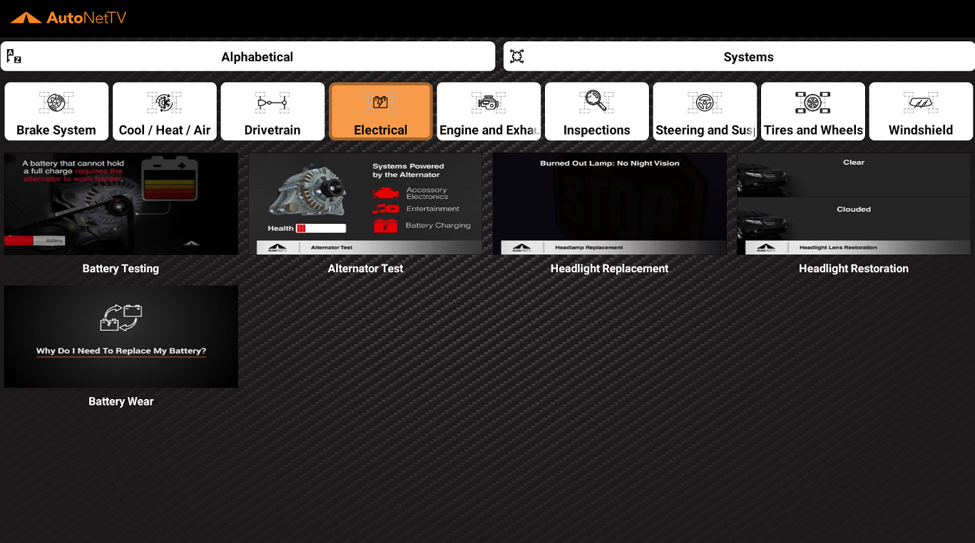
- The second option is to sort by System. In this tab Content is sorted based on the overall System. For example, to find Headlight videos choose Electrical with your remote.
- By default, when you open COD, you will see it set to Alphabetical. This is sorted using the first letter of each Service name. So, for example to find all Headlight videos navigate to the tab G-J.
- Whichever option you choose to sort, the next steps will be the same.
- Simply find and highlight a video and press OK with your remote.
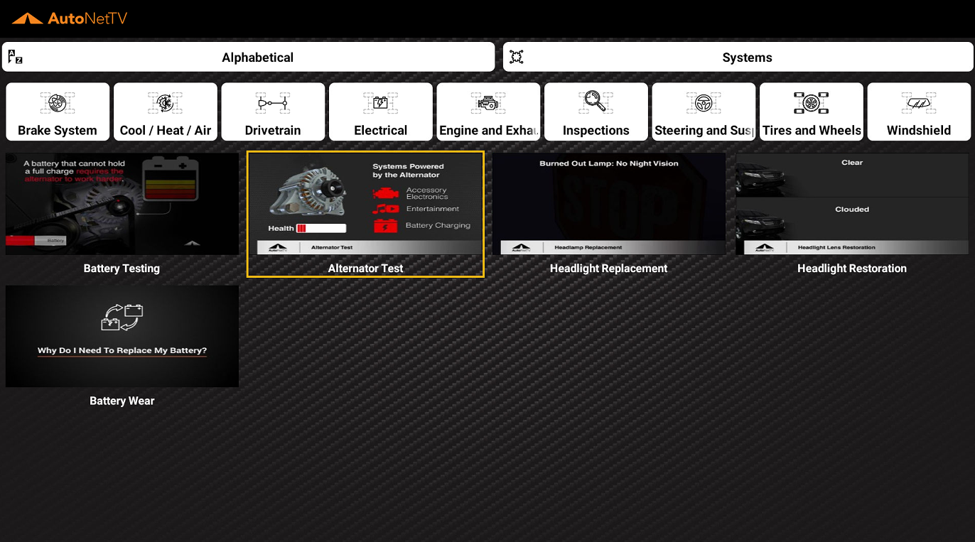
- Once the video starts playing you have the option to Pause/Resume, Skip Ahead or Rewind using your remote.
- To Pause/Resume simply hit OK on your remote. One press will pause and a second press will Resume again.
- To Skip Ahead press the right arrow on the remote next to the OK button. This will skip ahead a few seconds. To skip farther ahead hit the right arrow multiple times. (Please note if you try to skip ahead too far the video will end and will close).
- To rewind press the left on the remote next to the OK button. This will rewind a few seconds. To rewind farther hit the left arrow multiple times.
- When a video ends it will automatically close and go back to the COD home page.
- From here you can either play more videos or return to your program. To return hit the black and white left turn arrow under the OK button and arrows (Cannot use the purple arrow keys). By default, after a period of inactivity COD will automatically close and resume playing your program where it left off.
Was this article helpful?
That’s Great!
Thank you for your feedback
Sorry! We couldn't be helpful
Thank you for your feedback
Feedback sent
We appreciate your effort and will try to fix the article